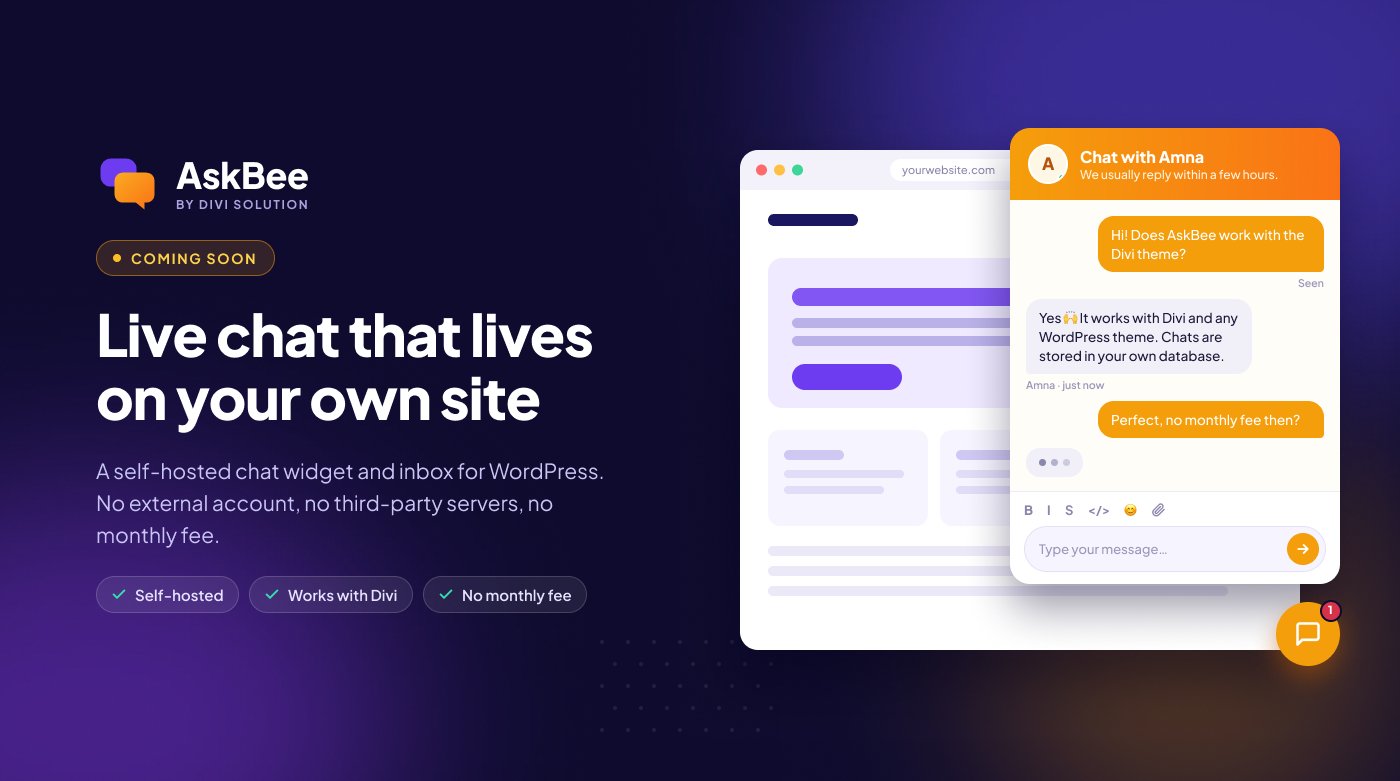
Coming soon: AskBee is not released yet. This documentation describes the plugin as it will ship, so you can see exactly how it works before launch. Ask to be notified.
Overview
AskBee is a self-hosted live chat plugin for WordPress. It adds a chat button to your site. Visitors click it, enter their name, email and question, and start a conversation. You reply from the AskBee inbox in your WordPress dashboard.
Everything stays on your own site: chats are saved in your WordPress database, attachments in your uploads folder, and emails go through your site’s normal mail setup. There is no external account, no third-party server and no monthly fee.
Requirements
| WordPress | 6.2 or newer (tested up to 6.9) |
|---|---|
| PHP | 7.4 or newer |
| Theme | Any theme, including Divi. AskBee is a regular plugin, not a Divi module. |
| Hosting | Any plan, including shared hosting. No WebSockets or extra services needed. |
| Working WordPress email for notifications. An SMTP plugin is recommended. |
Installation
- In your WordPress admin, go to Plugins → Add New.
- Click Upload Plugin at the top of the page.
- Click Choose File and select the
askbee.zipfile you downloaded. - Click Install Now, then Activate Plugin.
- Go to Divi Solution → AskBee. The chat button now shows on your site.
Where to find it: AskBee lives under the shared Divi Solution menu in wp-admin, next to our other plugins. The page has two tabs: Inbox and Settings.
Quick start
The chat works right after activation, but these five steps make it yours:
- Settings → Profile: add your display name and photo so visitors know who they are talking to.
- Settings → General: set the popup title, greeting and accent colour to match your brand.
- Settings → Inbox & Email: check the notification email address.
- Settings → Availability: turn on office hours if you don’t reply around the clock.
- Inbox: click Enable desktop alerts and allow notifications in your browser.
Then open your site in a private window and send yourself a test message.
The chat widget
The widget is a floating button in the bottom-right or bottom-left corner. Clicking it opens the chat popup with your name, photo and greeting.
New visitors
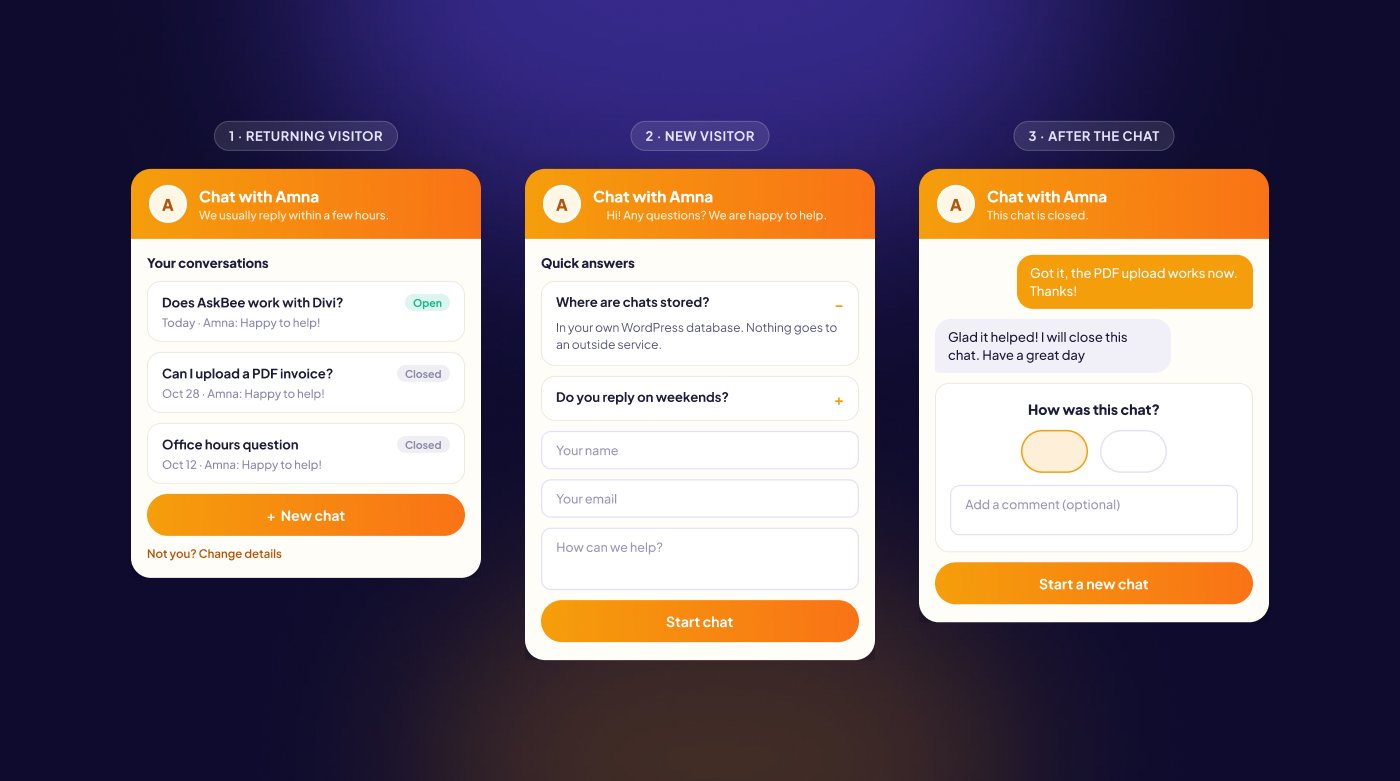
New visitors see your quick answers (if you added any) and a short form asking for their name, email and question. Name and email are required, so you can always reply by email.
Returning visitors
- The popup opens on Your conversations: their last 10 chats, newest first, with a preview, date and status.
- Open chats continue where they left off. Closed chats are read-only.
- New chat shows only the message box. Their name and email are reused, with a Not you? Change details link.
Visitors are recognised by a private token saved in their browser, not by matching email addresses.
Logged-in users
When Logged-in users is on, people logged in to your site skip the name and email fields. Their chats are linked to their WordPress account, so they can continue them on any device.
While chatting
- Messages appear on both sides within a few seconds.
- Typing indicators and Seen read receipts show on both sides.
- A formatting toolbar (bold, italic, strikethrough, code, links, lists) and emoji picker, if enabled.
- Images (JPG, PNG, GIF, WebP) and PDFs, if attachments are allowed.
Closed chats and ratings
When you or the visitor closes a chat, it becomes read-only. If Chat ratings is on, the visitor is asked “How was this chat?” with 👍 / 👎 and an optional comment. To ask something else, they start a new chat.
The inbox
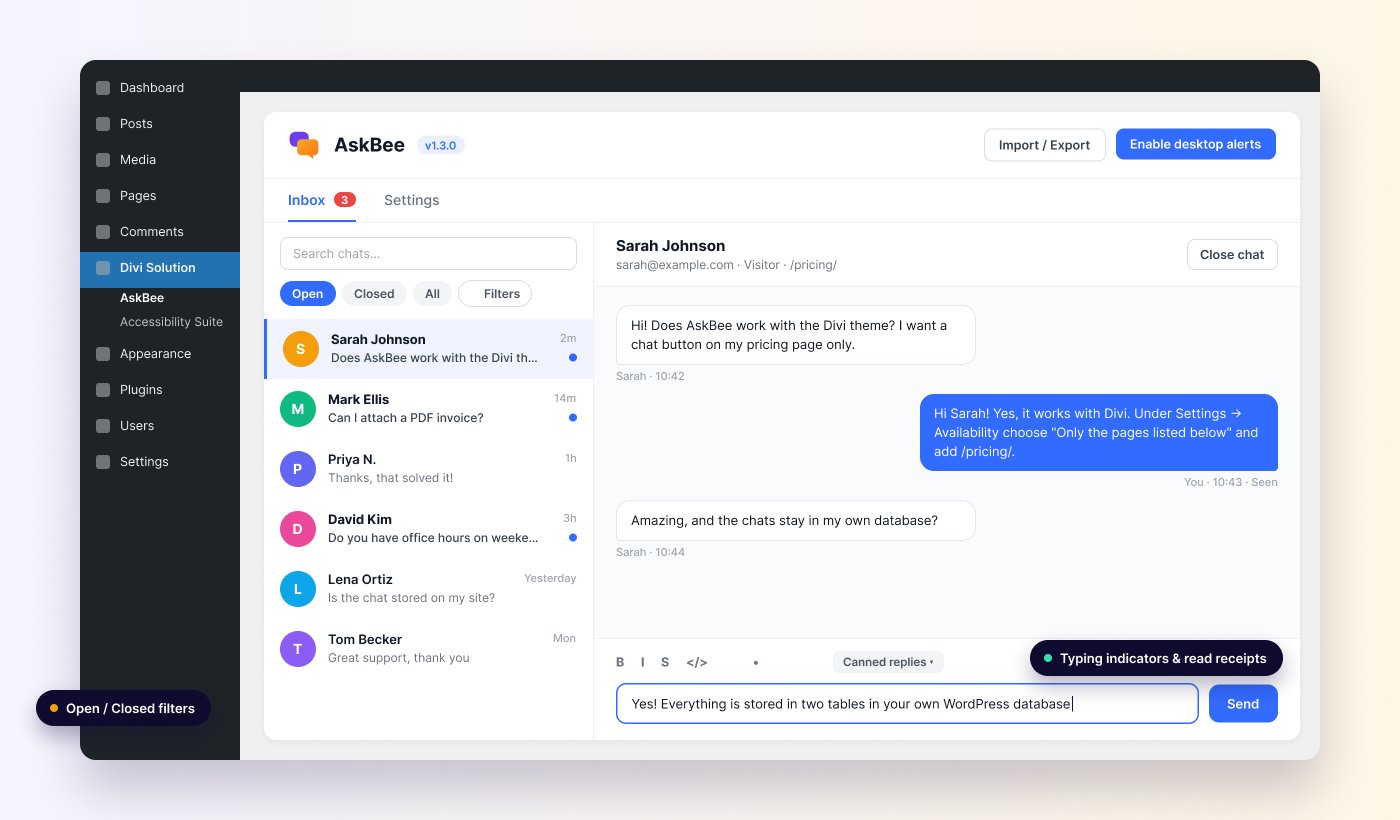
Go to Divi Solution → AskBee → Inbox. The left column lists your conversations; the right side shows the selected chat and the reply box.
Finding conversations
- Open / Closed / All tabs filter by status.
- Search by visitor name or email.
- Unread chats are in bold with a dot, and the Inbox tab shows the unread count.
The Filters popup
| Filter | Options |
|---|---|
| Rating | Any rating, 👍 Good, 👎 Bad, Not rated |
| Visitor | Everyone, Guests, Registered users |
| Sort by | Latest activity, Oldest activity, Unread first, Newest started |
| Unread only | Show only chats with unread messages |
| Group by visitor | Show all chats from the same person together |
Click Apply to use the filters or Reset to clear them.
Replying
- Type in the reply box and click Send, or press
Ctrl+Enter. Messages can be up to 2,000 characters. - Use the toolbar or shortcuts:
Ctrl+Bbold,Ctrl+Iitalic,Ctrl+Klink. - Pick a saved answer from Canned replies… to insert it.
- Click the paperclip to attach an image or PDF.
Closing and deleting
Close chat marks a conversation as done; Reopen chat brings it back. Delete removes the conversation, all its messages and its attachments permanently.
Settings reference
Go to Divi Solution → AskBee → Settings. Settings are grouped into tabs. Click Save Changes at the top after editing.
General
| Setting | What it does | Default |
|---|---|---|
| Show chat widget | Show the chat button on the front end. | On |
| Popup title | Heading in the popup, e.g. “Chat with Amna”. | Chat with us |
| Greeting | Shown above the form before a visitor starts a chat. | Hi there! Have a question?… |
| Reply time note | Shown in the header during office hours. | We usually reply within a few hours. |
| Accent color | Colour of the button, header and visitor messages. | #f59e0b |
| Position | Bottom right or bottom left. | Bottom right |
| Privacy notice | Optional text under the form, e.g. how you use the visitor’s email. | Empty |
Profile
| Setting | What it does | Default |
|---|---|---|
| Display name | Shown on your replies instead of “Support”. | Empty |
| Photo | Shown in the header and next to your replies. Without one, your WordPress profile picture is used. | Profile picture |
| Chat button icon | Chat bubble, question mark, or your photo. | Chat bubble |
Engagement
| Setting | What it does | Default |
|---|---|---|
| Teaser bubble | Small message next to the button, once per visit, for visitors without a chat. | On |
| Teaser text | The teaser message. | 👋 Hi! Any questions?… |
| Teaser text when away | Optional text outside office hours. | Same text |
| Show teaser after | Delay in seconds. | 5 |
| Auto-reply | Automatic reply to the first message of every new chat. | On |
| Auto-reply text | The automatic reply. | Thanks for your message!… |
| Auto-reply when away | Used outside office hours. | …we are away right now… |
| Auto-open after | Open the popup after this many seconds, once per visit, on screens wider than a phone. 0 turns it off. | 0 (off) |
Quick Answers
Add common questions and answers that show above the chat form, so visitors can help themselves. Set a Section title (default “Quick answers”), click Add question, and use Move up / Move down to order them. Answers can use **bold**, _italic_, links and lists starting with - .
Chat Features
| Setting | What it does | Default |
|---|---|---|
| Formatting toolbar | Bold, italic, strikethrough, code, links and lists in messages. | On |
| Emoji picker | An emoji button in the message box. | On |
| Logged-in users | Skip name and email for logged-in users and link chats to their account. | On |
| Chat ratings | Ask visitors to rate a chat (👍 / 👎) after it is closed. | On |
| Allow attachments | Let visitors and you send images (JPG, PNG, GIF, WebP) and PDFs. | On |
| Max file size (MB) | Upload limit per file, capped by your server’s own limit. | 5 |
Availability
| Setting | What it does | Default |
|---|---|---|
| Use office hours | Outside your hours the widget shows you as away and collects messages. | Off |
| Weekly hours | Opening and closing time for each day. | Mon–Fri, 09:00–17:00 |
| Away message | Shown in the popup outside office hours. | We are away right now… |
| Show on | All pages, only listed pages, or all pages except listed ones. | All pages |
| Pages | One path per line, e.g. /contact or /shop/*. Use * as a wildcard and / for the home page. | Empty |
Inbox & Email
| Setting | What it does | Default |
|---|---|---|
| Canned replies | One reply per line. Pick them from the inbox to insert into your answer. | Empty |
| Email me | Email when a new chat starts or a visitor writes again. | On |
| Notification email | Where alerts are sent. | Site admin email |
| Email visitors | Email your reply to visitors who have left the site. | On |
| Bad rating alert | Email you when a visitor gives a 👎. | On |
Office hours
Turn on Use office hours under Settings → Availability and set the hours for each day. Times use your site timezone from Settings → General in WordPress. Overnight shifts work too, e.g. 22:00 to 02:00.
Outside your hours:
- The popup shows your Away message instead of the reply time note.
- Visitors can still send a message. It waits in your inbox.
- The away versions of the teaser and auto-reply are used, if you set them.
Caching: the widget checks office hours in the visitor’s browser, so cached pages always show the right status.
Notifications
In wp-admin
- Sound alerts for new messages anywhere in wp-admin. Browsers block audio until you click on the page once.
- Desktop alerts: click Enable desktop alerts in the inbox and allow notifications when the browser asks.
- An unread count in the browser tab title.
By email
- To you, when a new chat starts or a visitor writes again (Email me).
- To the visitor, with your reply, when they have left the site (Email visitors).
- To you, when a visitor gives a 👎 rating (Bad rating alert).
Import, export & reset
Use the buttons in the AskBee page header:
- Export settings downloads your AskBee settings as a JSON file. You can choose the file name.
- Import settings loads a file exported from AskBee. It replaces all current settings.
- Reset settings restores every setting to its default. Your conversations are not affected.
Privacy & data
- Chats are stored in two tables in your WordPress database:
wp_askbee_conversationsandwp_askbee_messages(your table prefix may differ). - Attachments are stored in
wp-content/uploads/askbee/with long random file names. Only images and PDFs are accepted, and PHP files can’t run in that folder. - AskBee adds to WordPress’s Export Personal Data and Erase Personal Data tools (Tools menu), and suggests text for your privacy policy.
- Spam protection uses a hidden honeypot field and rate limits. No CAPTCHA or third-party service is involved.
- Deleting a conversation deletes its messages and files.
Uninstalling: deleting the plugin from the Plugins screen removes its settings, both database tables and the uploads/askbee/ folder. Export anything you want to keep first. Deactivating keeps everything.
For developers
- Who can use the inbox: by default, users with the
manage_optionscapability. Change it with theaskbee_capabilityfilter:add_filter( 'askbee_capability', function () { return 'edit_pages'; // Let editors answer chats. } ); - REST API: the widget and inbox talk to your site through the
askbee/v1REST namespace. Security plugins that block the REST API for guests must allow it. - Translations: the text domain is
askbee.
Troubleshooting
The chat button doesn’t appear
- Check that Show chat widget is on under Settings → General.
- Check the Show on rule under Settings → Availability.
- Clear your page cache and any CSS/JS optimisation cache.
I don’t receive notification emails
Check the notification email under Settings → Inbox & Email. If other WordPress emails also don’t arrive, install an SMTP plugin.
Desktop alerts don’t appear
Click Enable desktop alerts in the inbox and allow notifications. Also check your operating system’s notification settings for the browser.
Messages don’t arrive
A security or firewall plugin may be blocking /wp-json/askbee/v1/ for visitors. Allow that path and try again.
Uploads fail
Only JPG, PNG, GIF, WebP and PDF files are accepted. Check Max file size (MB); it can’t be larger than your server’s upload limit, which is shown below the field.
Support
AskBee is coming soon. For questions before launch, use our contact form or email [email protected].